

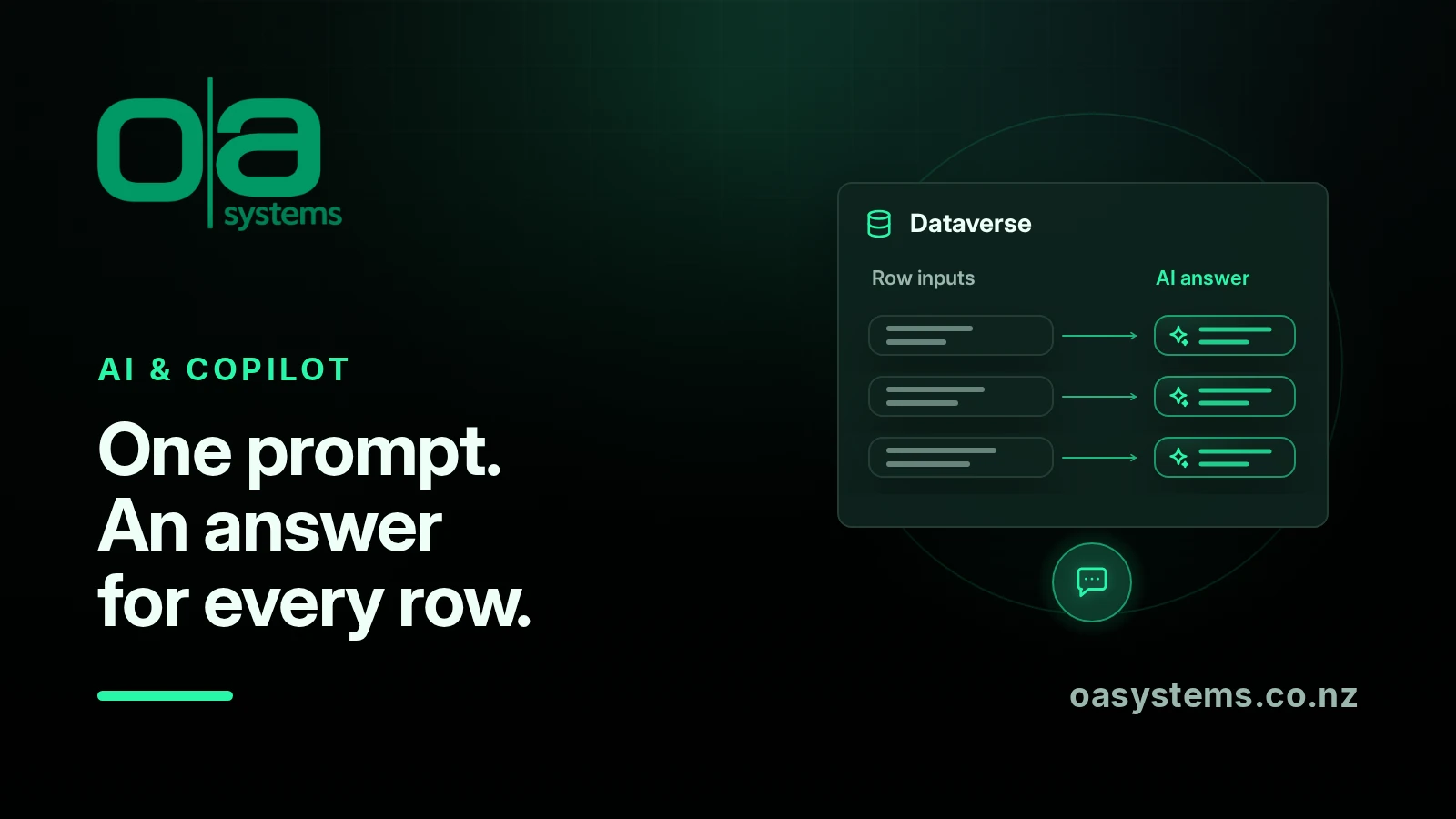
Imagine opening your CRM and finding a short summary, a suggested category or a list of risks already filled in for each record. Not because someone typed it, but because Dataverse ran an AI prompt against that record's information.
That's what prompt columns, sometimes called AI columns, do. Two changes planned for 16 November 2026 will make them more useful: generating values across existing records, and storing longer, multi-line answers. Here's where they fit, what updates automatically, and where we'd use something else.
One prompt, a separate answer for every row
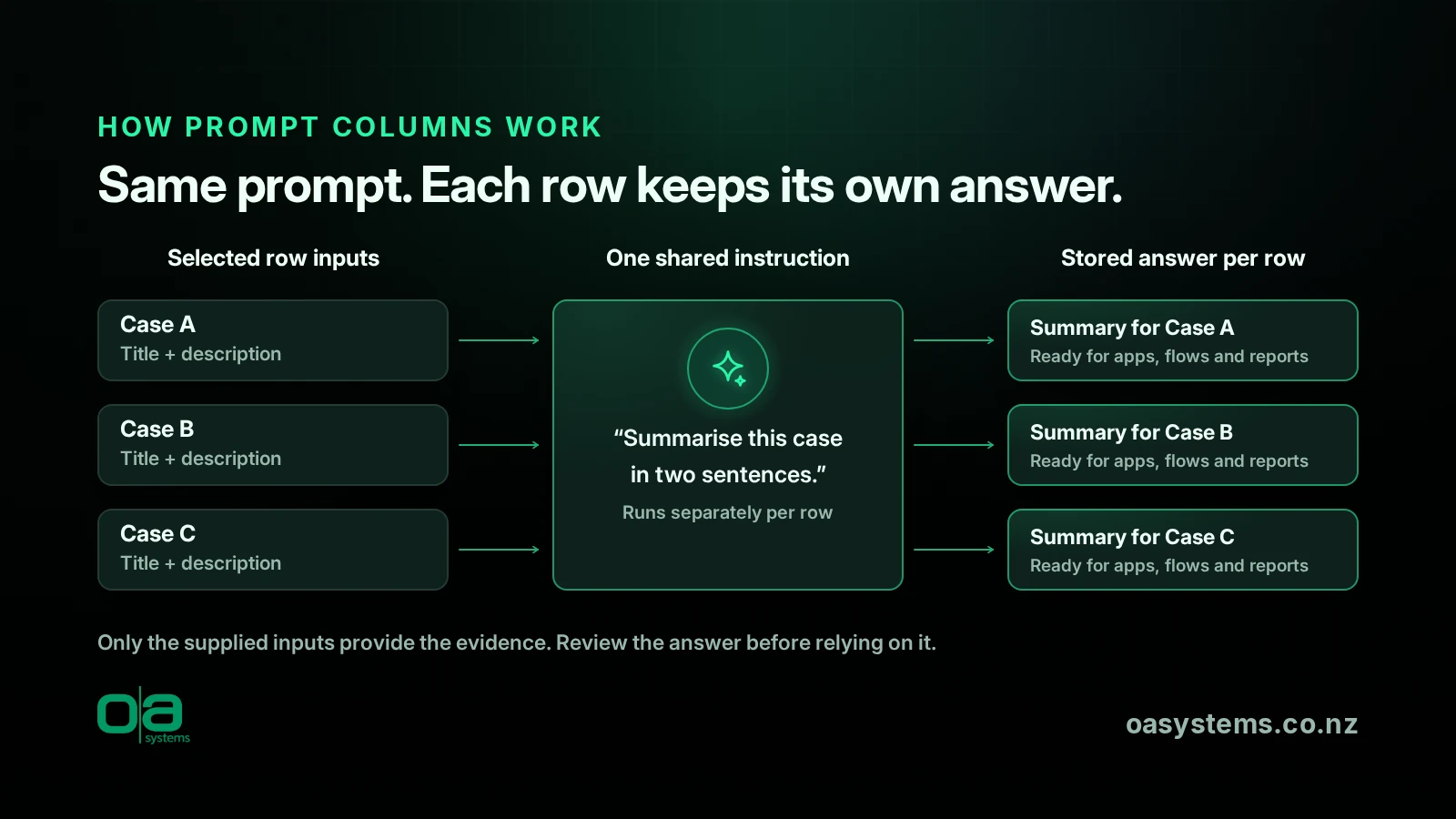
A prompt column stores an answer generated from a natural-language instruction using selected input columns in the same Dataverse table. The same instruction runs for each row, but each row supplies its own information and keeps its own answer.
Good Dataverse data modelling determines what information those prompts can use. For example, “Summarise this case in two sentences” could use the case title and description. Each case gets a different summary. Because the result is stored, it can be used in views, filters, flows and reports rather than disappearing when a chat closes. Microsoft's prompt column documentation explains the setup and supported inputs.
Could it rate how likely a deal is to close?
You could ask:
Using only the supplied stage, budget status, decision-maker status and sales notes, rate out of 10 how likely this deal is to close. If evidence is insufficient, say so. Do not invent missing information.
That gives each opportunity its own generated assessment. But there are important catches.
It only knows the inputs you supply. A useful email or meeting isn't automatically included just because it's associated with the opportunity. If important facts aren't in the selected inputs, don't expect the answer to reflect them. It's the same data-quality issue explored in our article on getting your CRM ready for Copilot.
A generated rating isn't a trained forecast. A “7 out of 10” does not establish a 70% win probability. Nor should you assume asking for a number creates a validated numeric field; check the output format and validate it before downstream use.
For predictive win likelihood, assess Dynamics 365 Sales opportunity scoring, which learns from historical outcomes. It has licensing, configuration and training-data requirements.
We'd usually start with “Summarise this deal and list the main risks” instead. That helps a salesperson review the evidence without making an opinion look like a forecast.
Where prompt columns fit best
They're best suited to interpreting language already available in the row: summarising notes or cases, classifying or tagging free text, extracting details, assessing sentiment, and drafting next-step suggestions for review. Tell the prompt what to return when information is missing, and define allowed categories where consistency matters.
Not every automatic field needs generative AI. Choosing the right approach is a solution-design decision:
| What you need | Better starting point |
|---|---|
| A summary, category, extracted detail or suggested next step | A prompt column, with human checks |
| Predictive opportunity or lead scoring | Dynamics 365 Sales predictive scoring |
| A custom prediction trained on historical outcomes | AI Builder prediction |
| Exact arithmetic or fixed conditional logic | Formula/calculated columns or business rules, as appropriate |
| Analysis needing emails, related records or external systems | A workflow or agent designed to retrieve that context |
Microsoft documents predictive lead scoring, AI Builder prediction, Power Fx formula columns and business rules separately. They solve different problems.
High-volume tables and frequently changing inputs also deserve caution: repeated executions consume credits. Narrow the scope or consider controlled batch processing rather than generating answers nobody reads. For anything beyond the row, design the data retrieval explicitly; a prompt column isn't an automatic search across your business.
What actually triggers a refresh?
Microsoft's documentation is clear: a prompt executes when a record is created or when one or more referenced input columns are updated. Changing an unrelated column doesn't execute it or consume extra credits.
Changing the prompt definition alone doesn't recalculate stored answers. Plan how existing values will be regenerated rather than assuming they'll all change immediately.
Microsoft also documents asynchronous processing as a rolling-out enhancement. That means generation can happen in the background, not necessarily before a save completes. Check your environment's behaviour and use the associated Status and Details columns to understand completion or failures. Don't design a critical process around an answer appearing instantly.
What's coming on 16 November?
Two Message Center announcements give 16 November 2026 as the planned general availability date. Treat that as rollout guidance, not a guarantee for every environment that morning. Our guide to tracking Dynamics 365 changes explains how to keep roadmap dates and tenant notices in perspective.
Backfill for existing records. MC1488488, reproduced by PUPUWEB, announces bulk generation without updating each record to trigger it. Microsoft Learn already documents the capability as rolling out.
The controls matter:
- Allow bulk processing of existing records is off by default in the environment's feature settings.
- Bulk generation runs as an asynchronous background job. System Jobs lets you monitor and manage it, including credit usage.
- Require review before processing imported prompt columns is on by default. On solution import, the job pauses in System Jobs until reviewed and manually started. This reviews the processing job, not each generated answer.
Multi-line text output. MC1515841, reproduced by ChangeCockpit, announces a multiple-lines-of-text output option for new prompt columns. Existing prompt columns continue working but won't gain that option. That's useful for longer summaries and risk lists; don't assume an existing column can simply be switched over.
How we'd start safely
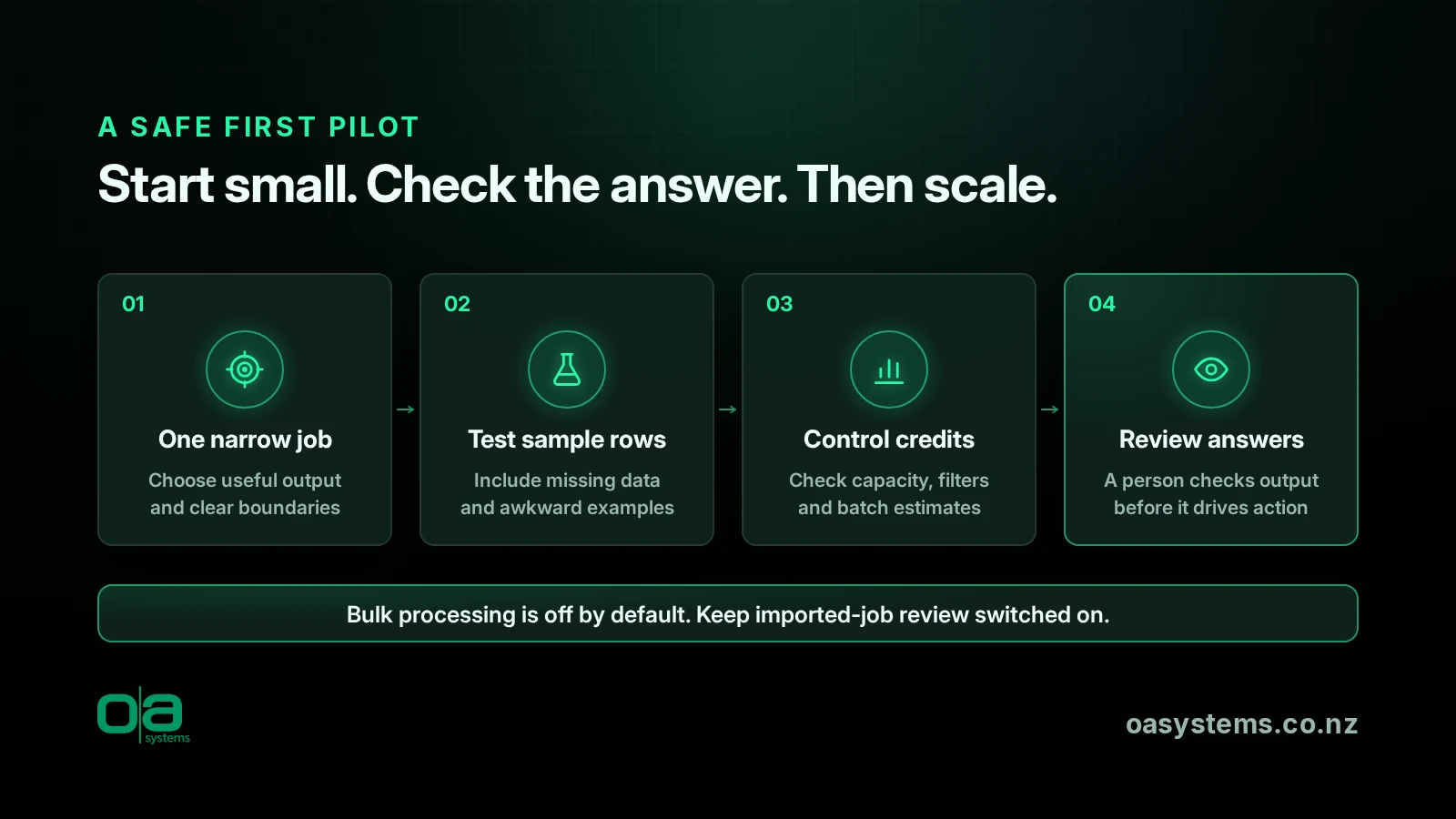
Our AI adoption and Copilot enablement work starts with a practical, controlled pilot:
- Choose one narrow job. “Summarise the case description for handover” is easier to assess than “tell us everything about this customer”. Agree what a useful answer looks like.
- Test a few varied rows. Include incomplete, contradictory and unusually long inputs. Microsoft says testing in the prompt designer is free; production executions, including backfill, consume credits.
- Set a credit budget and processing limits. Check capacity, filter eligible records and estimate batch consumption before running it. Review actual usage in Power Automate's Automation center under AI Builder activity, and bulk-job usage in System Jobs. Don't assume a budget is a hard spending cap: confirm your licensing and billing controls. Microsoft's licensing overview explains Copilot Credits and AI Builder credits.
- Keep a human review step. Label generated content, let staff check it, and don't let an unreviewed suggestion approve spending, promise a customer something or overwrite trusted data. As we explain in why agents don't replace CRM consultants, faster generation doesn't remove human accountability.
Frequently asked questions
Is a prompt column a chatbot?
No. It runs a defined instruction against selected row inputs and stores the answer in Dataverse. There's no conversation required.
Do prompt columns update automatically?
They execute on record creation or updates to referenced inputs, subject to enabled settings and filters. Editing the prompt alone doesn't refresh existing answers. Background processing means results may arrive after the save.
Can we fill prompt columns for records we already have?
Bulk backfill is planned for general availability on 16 November 2026 and is documented as rolling out. Enable the environment setting, check credits and review the job before processing a large batch.
Does every prompt column run cost credits?
Production executions consume Copilot Credits or AI Builder credits, depending on the applicable entitlement. Prompt-designer testing is free. Check current capacity and licensing before enabling recurring generation or backfill.